UReader
Brands
Sign in
Sign up
Newsletter Search Engine
Dates
2025 (205704)
2026 (57477)
2024 (51094)
Business Categories
General
(99960)
Other
(57167)
Home
(21891)
Fashion
(20925)
Electronics
(16572)
Literature
(11187)
Sports
(11063)
Art
(8493)
Machinery
(5002)
Health
(4655)
Food
(2909)
Country
GLOBAL
(36201)
CO
(19575)
NL
(17198)
AU
(16727)
GB
(14835)
NZ
(14768)
US
(13520)
BE
(13144)
DE
(8893)
FI
(8562)
CL
(7647)
CA
(7437)
PL
(7296)
RO
(7132)
ES
(6742)
HU
(6482)
ZA
(6419)
IL
(5951)
AR
(5937)
DK
(5633)
FR
(5289)
SK
(5216)
BR
(5154)
HR
(5066)
IT
(4976)
CZ
(4644)
PT
(4481)
SE
(4456)
IE
(3834)
GR
(3812)
NO
(3775)
SG
(3132)
CH
(3045)
BG
(2911)
RU
(2609)
MY
(2274)
UA
(2251)
MX
(2150)
AT
(2121)
JP
(2117)
PE
(1846)
RS
(1762)
TR
(755)
VE
(750)
IO
(667)
ID
(589)
TW
(586)
PK
(575)
IQ
(540)
HK
(498)
MA
(476)
PH
(436)
TV
(409)
AE
(315)
TH
(248)
KW
(188)
KP
(108)
VN
(54)
EG
(42)
IN
(8)
KZ
(4)
MD
(2)
NU
(2)
LT
(1)
BA
(1)
LK
(1)
Total 314275 mails
bravojeans
AR
·
2026-6-11
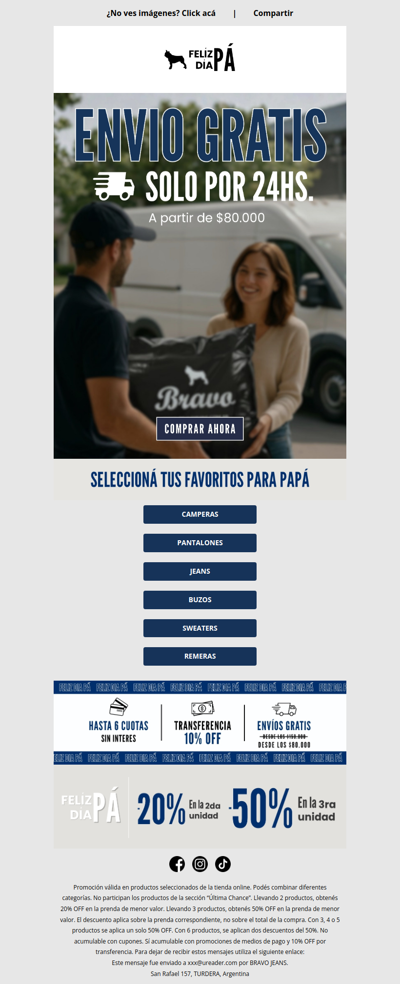
ENVIO GRATIS POR 24HS 🚚
embargosalobestia
ES
·
2026-6-11
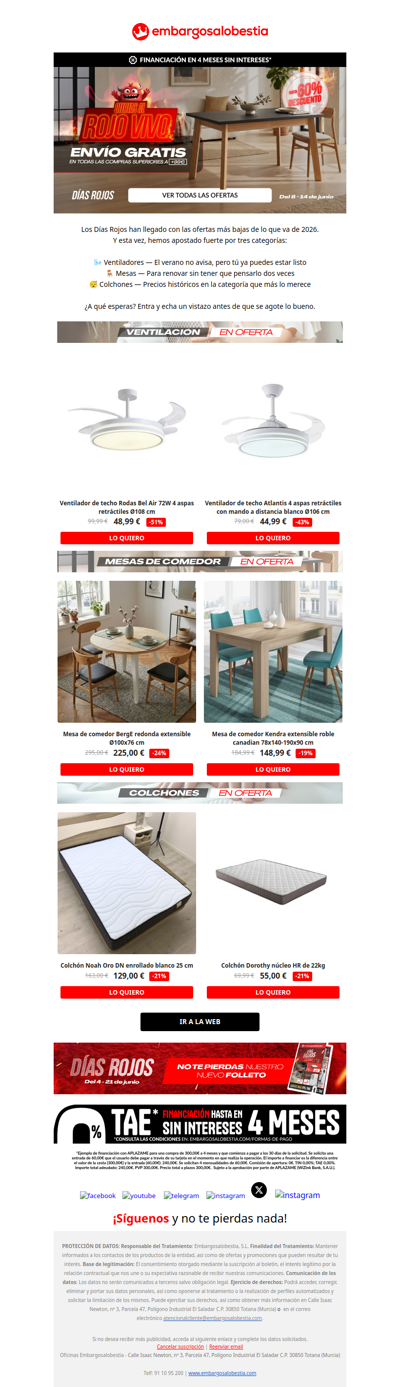
¿Ventiladores de techo por menos de 50€? 😱
lot-tissimo
GLOBAL
·
2026-6-11
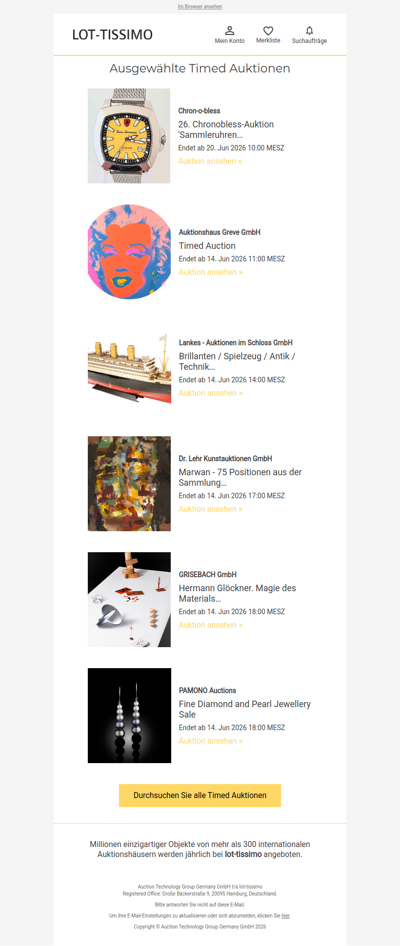
Kommende Timed Auktionen
coop
CH
·
2026-6-11
⚽ Täglich gewinnen beim grossen «Penalty-Schiessen»
travessa
BR
·
2026-6-11
Para pequenos leitores
ekobor
HK
·
2026-6-11
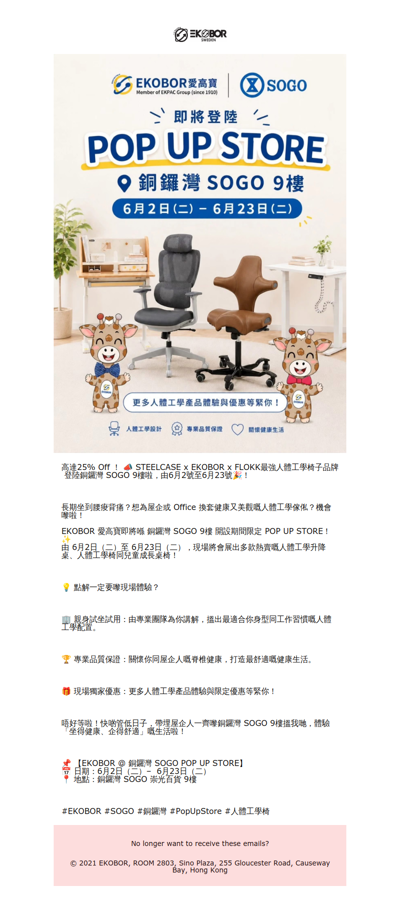
06.02 - 06.23 Visit EKOBOR at SOGO 9th CWB!
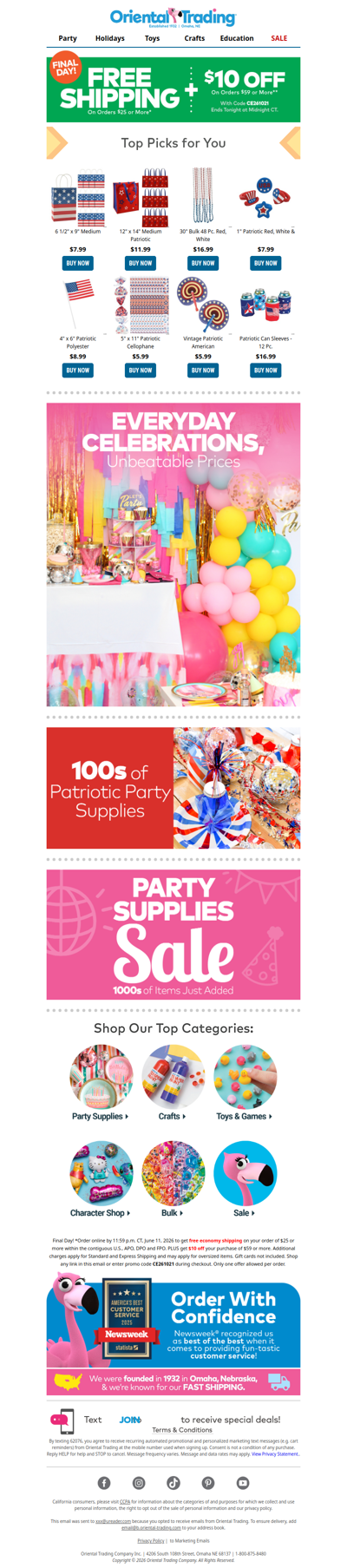
orientaltrading
GLOBAL
·
2026-6-11
Final Day! 😭 Free Shipping + $10 Off!
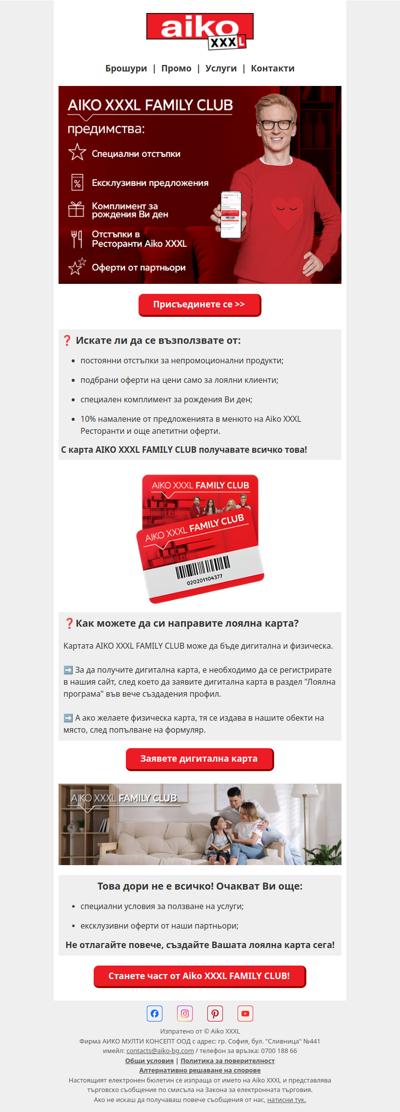
aiko-bg
BG
·
2026-6-11
🤗 Заповядайте в AIKO XXXL FAMILY CLUB!
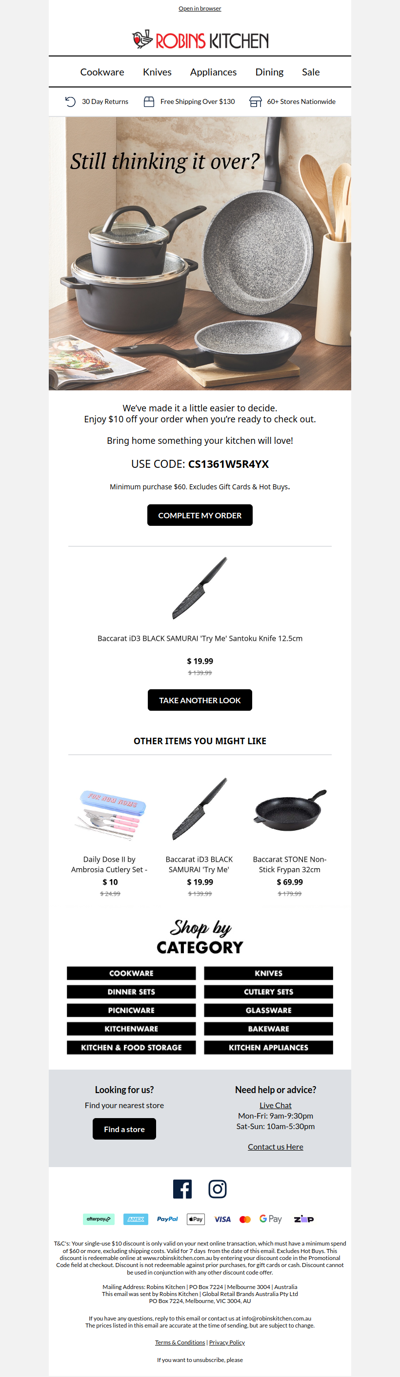
robinskitchen
AU
·
2026-6-11
That piece you liked? Now even better
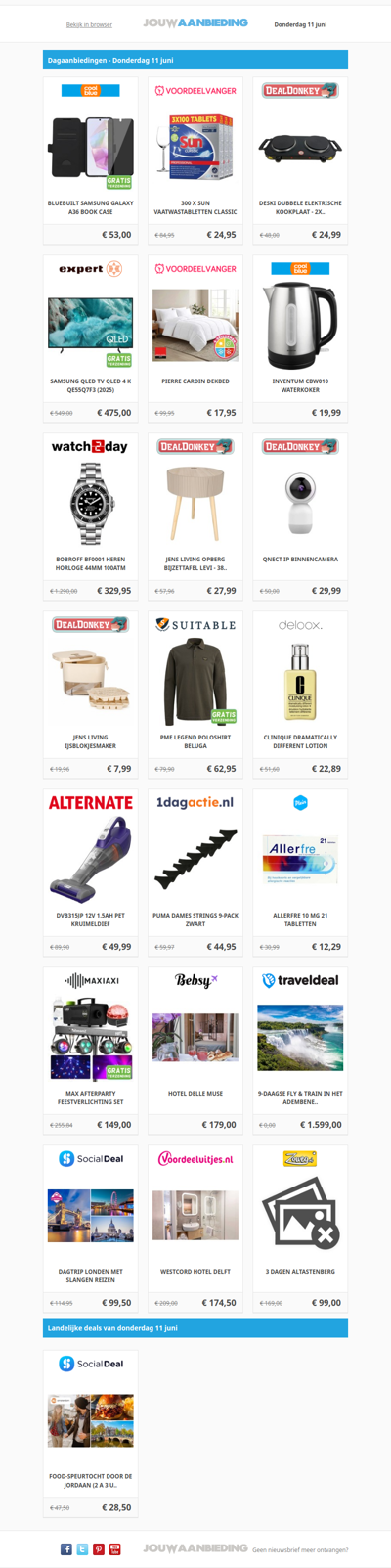
jouwaanbieding
NL
·
2026-6-11
Alle dagaanbiedingen van donderdag 11 juni
samsungshop
UA
·
2026-6-11
7 секретних фішок вашого смартфона🤫✨
modellhobby
SE
·
2026-6-11
NYHETSBREV - OUTLET!
1
2
3
4
5
©2024 UReader
Home
Brands
Marked Emails
Followed Brands
Privacy Policy & User Agreement